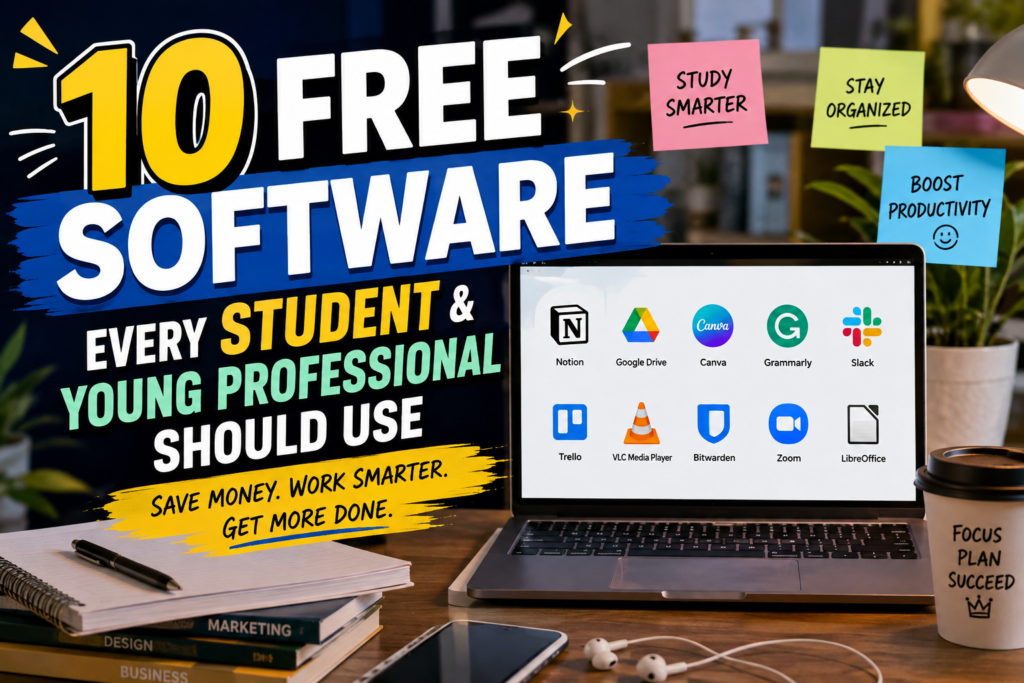
10 Best Free Software for College Students and Young Professionals in 2026
College is expensive.
Your first apartment is expensive. Groceries are expensive. That $7 coffee you somehow keep buying is expensive.
So the last thing you need is another pile of monthly software subscriptions quietly eating your paycheck.
But here’s the annoying part: you actually need software.
You need something for assignments. Something for presentations. Something to organize your life. Something for work. Something to keep your passwords safe. And if you’re applying for internships or your first full-time job, you’ll probably need a few tools that make you look like you have your life together — even if your laundry says otherwise.
The good news?
You don’t have to spend a fortune.
There are a surprising number of free software tools for college students and young professionals that are genuinely useful. Some are completely free, while others offer free plans that are more than enough for everyday school and work.
We went through the usual suspects — plus some alternatives — and narrowed everything down to 10 tools worth actually using in 2026.
We also prioritized software with strong user feedback, using 3.5/5 as our minimum rating benchmark where comparable review data was available.
No random “productivity app you’ve never heard of that has 17 users.”
Just useful software that can make your digital life a little less chaotic.
The Short Version: Which Free Software Should You Get?
If you don’t have time to read the whole list, here’s the cheat sheet.
| Software | Best For | Free Plan | Rating |
|---|---|---|---|
| Notion | Notes & organization | Yes | ⭐ 4.6/5 |
| Google Workspace | Documents & collaboration | Yes* | ⭐ 4.6/5 |
| Canva | Design & presentations | Yes | ⭐ 4.7/5 |
| Microsoft 365 | Office & career skills | Student access* | ⭐ 4.6/5 |
| Grammarly | Writing & editing | Yes | ⭐ 4.7/5 |
| Bitwarden | Password management | Yes | ⭐ 4.7/5 |
| Trello | Project management | Yes | ⭐ 4.4/5 |
| Zoom | Meetings & interviews | Yes | ⭐ 4.5/5 |
| VLC | Video & audio | Yes | ⭐ 4.7/5 |
| LibreOffice | Free Office alternative | Yes | ⭐ 4.2/5 |
*Availability and features can vary depending on your school, account, or current plan.
Now let’s get into the good stuff.
1. Notion — Best Free All-in-One Productivity App for Students
Rating: 4.6/5
Best for: Notes, assignments, planning, and basically organizing your entire life
Let’s start with the obvious one.
You’ve probably heard of Notion approximately 700 times if you’ve ever watched a productivity video.
There’s a reason for that.
Notion is one of those tools where you can start with something ridiculously simple — like a to-do list — and eventually end up building an entire digital headquarters for your life.
For college, you can use it for:
- Class notes
- Assignment deadlines
- Reading lists
- Exam schedules
- Study plans
- Group projects
- Personal goals
- Internship applications
And once you graduate, it can easily follow you into your career.
You could use the same workspace for meeting notes, project tracking, personal goals, freelance work, or keeping track of job applications.
Notion offers a free individual plan, and eligible students can access a free Education Plus plan using an institution email.
The part nobody tells you about Notion
Notion is almost too flexible.
That’s both its superpower and its biggest problem.
You can spend an entire Sunday creating a beautiful “Ultimate Semester Dashboard™” with color-coded databases, icons, formulas, and motivational quotes…
…and then completely forget to do your assignment.
So don’t overcomplicate it.
Start with three pages:
Classes → Tasks → Notes
That’s enough.
Our take
If you’re looking for the best free productivity software for college students, Notion is one of the easiest recommendations.
Just don’t turn organizing your life into another hobby.
Rating: ⭐ 4.6/5
2. Google Workspace — Best Free Software for Everyday Student Life
Rating: 4.6/5
Best for: Documents, spreadsheets, presentations, storage, and group projects
Remember the person in your group project who says:
“Can everyone send me their part?”
And then creates a Word document that gets emailed around 14 times?
Yeah.
Don’t be that person.
Google Workspace makes collaboration ridiculously simple.
Google Docs, Drive, Sheets, Slides, Gmail, Calendar, and Meet cover a huge portion of what students and young professionals actually need.
Need to write an essay?
Google Docs.
Need to make a budget?
Google Sheets.
Need a presentation?
Google Slides.
Need to send the presentation to your group without creating six different versions called Final_Final_REAL_Final.pptx?
Google Drive.
That’s the beauty of the ecosystem.
Everything works together.
Recent student software guides consistently put Google Workspace near the top because it covers writing, collaboration, storage, scheduling, and communication in one ecosystem.
Why it matters after graduation
This isn’t just student software.
A lot of workplaces already use Google Workspace, so learning Docs, Sheets, Drive, Calendar, and Gmail is also useful preparation for your first job.
And if your university provides Google Workspace through your student account, you’re potentially getting a pretty powerful software stack for free.
Our take
It’s not exciting.
It’s not flashy.
But it works.
And honestly, boring software that works is underrated.
Rating: ⭐ 4.6/5
3. Canva — Best Free Design Tool for Students
Rating: 4.7/5
Best for: Presentations, resumes, posters, social media, and visual projects
Here’s a situation every college student eventually encounters:
Your professor says:
“Make a visually engaging presentation.”
And suddenly you’re staring at PowerPoint wondering how to make a rectangle look interesting.
Enter Canva.
Canva makes it easy to create professional-looking designs without spending months learning Photoshop.
You can make:
- Class presentations
- Resumes
- Infographics
- Posters
- Social media graphics
- Portfolio pages
- Event flyers
- YouTube thumbnails
And because Canva has templates, you don’t have to start from a terrifying blank page.
That matters more than you might think.
Canva is also useful for your first job
Imagine your manager says:
“Can you make a quick graphic for this?”
If you’ve used Canva before, that’s a five-minute task.
If you haven’t?
You may suddenly discover that Photoshop has approximately 4,000 buttons.
Canva is especially popular because it lowers the barrier to design. G2 currently lists Canva at 4.7/5, with users frequently praising its templates and ease of use.
One important warning
Don’t assume “free” means every Canva feature is free.
Some templates, assets, and advanced features are locked behind paid plans.
But the free version still gives beginners plenty to work with.
Our take: If you need good-looking visuals without becoming a designer, start here.
Rating: ⭐ 4.7/5
4. Microsoft 365 — Best Free Office Software for Your Career
Rating: 4.6/5
Best for: Word, Excel, PowerPoint, and workplace skills
Okay, Microsoft Office isn’t exactly giving “cool Gen Z startup.”
But hear us out.
You are probably going to need it.
At some point, someone at work will send you an Excel spreadsheet and say:
“Can you take a look at this?”
And you don’t want to be the person who opens it and immediately starts Googling what a pivot table is.
Microsoft Word, Excel, and PowerPoint remain extremely useful workplace skills.
The best part for students?
Check whether your university gives you Microsoft 365 Education for free before paying for it.
Eligible educational institutions can provide students access to Microsoft 365 Education.
Why Excel deserves special attention
If you’re starting your career, learning basic Excel can be much more valuable than learning another fancy productivity app.
Learn:
- Sorting
- Filtering
- Basic formulas
- Charts
- Tables
- Conditional formatting
- Pivot tables
You don’t have to become an Excel wizard.
Just become the person who can actually make the spreadsheet work.
Our take
Not the sexiest software on the list.
Probably one of the most useful.
Rating: ⭐ 4.6/5
5. Grammarly — Best Free Writing Tool for Students and New Grads
Rating: 4.7/5
Best for: Essays, resumes, emails, and professional writing
There are two kinds of typos.
The harmless kind:
“See you tomorow.”
And the terrifying kind:
“Dear Hiring Manager, I am excited to apply for this position becuase…”
No.
Just no.
Grammarly can help catch spelling, grammar, punctuation, and style problems while you write.
That makes it useful for students working on essays, reports, and applications — and for young professionals writing emails, reports, proposals, and resumes.
Grammarly’s free plan provides basic writing assistance, while paid plans add more advanced features. G2 currently shows a 4.7/5 rating from thousands of reviews.
But don’t let Grammarly become your boss
This is important.
A writing assistant is a tool, not the final authority.
If Grammarly suggests changing something and you know your sentence is correct, ignore it.
You are still smarter than the squiggly green line.
Most of the time.
Our take
Especially useful for anyone who wants their emails and applications to sound polished without spending 20 minutes rereading the same sentence.
Rating: ⭐ 4.7/5
6. Bitwarden — The Free App You’ll Be Glad You Installed
Rating: 4.7/5
Best for: Passwords and digital security
Let’s have a quick intervention.
If you use the same password for your email, university account, shopping account, and random website you joined three years ago…
Please stop.
Seriously.
A password manager like Bitwarden can store your passwords securely and help you create stronger, unique passwords.
This becomes increasingly important once you’re juggling:
- University accounts
- Personal email
- Banking
- Job applications
- Work accounts
- Cloud storage
- Social media
- Shopping
- Subscription services
That’s a lot of passwords.
You shouldn’t have to remember all of them.
Bitwarden offers a free plan, and G2 currently lists it at 4.7/5.
Why students should care
Security isn’t just something corporations worry about.
Your student account could contain personal information, assignments, financial information, and access to other university services.
One strong password per account is a much better strategy than using:
Password123!
for everything.
You know who you are.
Our take
It’s not exciting.
You probably won’t brag about it to your friends.
Install it anyway.
Rating: ⭐ 4.7/5
7. Trello — Best Free Project Management Tool for People Who Hate Complicated Apps
Rating: 4.4/5
Best for: Group projects, assignments, job applications, and task tracking
Notion can sometimes feel like you’re building a spaceship just to remember that you have an essay due Friday.
Trello is much simpler.
Its basic idea is:
To Do → Doing → Done
That’s it.
You create cards for tasks and move them across your board.
For college:
Assignments
→ Not Started
→ Working On It
→ Almost Done
→ Submitted
For job hunting:
Job Applications
→ Interested
→ Applied
→ Interview
→ Offer
Okay, maybe add a “Rejected” column too.
We’re adults here.
Trello is particularly useful for visual thinkers who prefer seeing their workload rather than reading through a giant list.
G2 currently rates Trello at 4.4/5 from thousands of reviews, while its free plan provides a solid starting point for individuals and small teams.
Our take
If Notion feels like too much and a basic to-do list feels too boring, Trello is the sweet spot.
Rating: ⭐ 4.4/5
8. Zoom — Best Free Video Meeting Software for Students
Rating: 4.5/5
Best for: Online classes, interviews, meetings, and remote work
Zoom has officially become one of those pieces of software that everyone knows.
And yes, we’re still using it.
For students, Zoom can be useful for:
- Online classes
- Office hours
- Study groups
- Interviews
- Tutoring
- Networking
For young professionals:
- Job interviews
- Team meetings
- Client calls
- Remote training
- Presentations
G2 currently lists Zoom Workplace at 4.5/5 based on a very large volume of user reviews.
The real reason you should know Zoom
Job interviews.
If you’re applying for internships or entry-level jobs, you should be comfortable joining a video call before the interview starts.
Know how to:
- Check your microphone
- Test your camera
- Share your screen
- Mute yourself
- Share a presentation
- Join a meeting early
Because discovering that your microphone doesn’t work during an interview is not the kind of plot twist you want.
Rating: ⭐ 4.5/5
9. VLC Media Player — The Boring App That Somehow Saves You
Rating: 4.7/5
Best for: Playing almost any video or audio file
Every computer eventually encounters a video file it refuses to play.
Windows says:
“We don’t recognize this.”
Your browser says:
“Nope.”
Your other media player wants you to install something.
VLC:
“Give me the file.”
That’s basically its entire personality.
VLC is a free, open-source media player that supports a huge range of audio and video formats.
For students, it can be useful for:
- Lecture recordings
- Downloaded educational videos
- Media assignments
- Offline study content
- Different video formats
G2 lists VideoLAN at 4.7/5, with reviewers praising its compatibility and ability to handle many media formats.
The interface isn’t exactly cutting-edge.
It looks like software that has been minding its own business since 2004.
But it works.
And sometimes that’s all you need.
Rating: ⭐ 4.7/5
10. LibreOffice — Best Completely Free Alternative to Microsoft Office
Rating: 4.2/5
Best for: Students who want Word, Excel, and PowerPoint alternatives without paying
Here’s the situation.
You need a document editor.
You need spreadsheets.
You need presentations.
But you don’t want another subscription.
LibreOffice enters the chat.
LibreOffice is an open-source office suite that provides tools for documents, spreadsheets, presentations, and more.
It’s especially attractive if you’re on a tight budget because there’s no monthly subscription required.
Student-focused software guides regularly include LibreOffice as one of the strongest free alternatives to Microsoft Office.
So why not just use Google Docs?
You absolutely can.
The difference is that LibreOffice is much more focused on traditional desktop software and offline work.
That can be useful if:
- Your internet connection isn’t reliable
- You prefer desktop software
- You want to work offline
- You don’t want another subscription
- You need traditional document/spreadsheet/presentation tools
The downside
LibreOffice isn’t as seamless for real-time collaboration as Google Workspace.
So if you’re working on a group assignment with five people simultaneously, Google Docs may be easier.
If you’re sitting alone in a library with no Wi-Fi?
LibreOffice starts looking pretty good.
Rating: ⭐ 4.2/5
What Should a College Student Actually Install?
Here’s where we get practical.
You do not need all ten apps.
Seriously.
One of the biggest problems with productivity culture is that we somehow turned downloading productivity apps into productivity.
Don’t do that.
If you’re a typical college student, I’d start with this:
Your Student Starter Pack
Notion
For notes, assignments, and organization.
Google Workspace
For documents, presentations, spreadsheets, and collaboration.
Canva
For presentations and visual projects.
Grammarly
For important writing.
Bitwarden
For passwords.
That’s it.
Five tools.
And for many students, that’s enough.
If you have lots of group projects, add Trello.
If you work with lots of video files, add VLC.
If your school doesn’t provide Microsoft 365 and you want traditional office software, try LibreOffice.
What Should a Young Professional Install?
Your needs change once you start working.
Suddenly, “I have an assignment due Friday” becomes:
“Can you send this before 3 p.m.?”
Different energy.
For a new professional, I’d recommend:
Your First-Job Software Stack
Microsoft 365 or Google Workspace
Learn the office tools your workplace actually uses.
Notion
Keep personal notes, goals, projects, and career information organized.
Trello
Useful for simple project and task management.
Grammarly
Useful for important emails and written communication.
Bitwarden
Keep your accounts secure.
Zoom
Be ready for interviews and remote meetings.
Canva
Useful when someone inevitably asks you to “make it look nicer.”
How to Avoid the Subscription Trap
Here’s my favorite rule for software:
Start Free → Use It → Upgrade Only If You Need It
Don’t pay for a premium plan because a productivity influencer told you that successful people use it.
Try the free version first.
Use it for a few weeks.
Ask yourself:
Does this actually save me time?
If the answer is no, delete it.
If the answer is yes, but you’re hitting a specific limitation, then consider paying.
This is particularly important for students because many tools offer free plans or education programs. For example, Notion offers an Education Plus plan for eligible students, while Microsoft 365 Education can be available through participating schools.
Always check your university email before paying for software.
You might already have access.
The Best Free Software Depends on What You Actually Do
There isn’t one magical “best software for students.”
It depends on your life.
If you’re writing lots of essays
Google Docs + Grammarly + Notion
If you’re doing lots of presentations
Canva + Google Slides
If you’re doing group projects
Google Workspace + Trello
If you’re applying for jobs
Canva + Grammarly + Notion
If you’re starting your first office job
Microsoft 365 + Zoom + Bitwarden
If you’re broke and want to spend exactly $0
Google Workspace + Notion + Canva + Bitwarden + LibreOffice
Honestly?
That’s a pretty solid setup.
Final Verdict: Your Software Stack Doesn’t Need to Be Expensive
You don’t need a $50-a-month productivity stack.
You don’t need 19 subscriptions.
And you definitely don’t need an app that sends you motivational notifications every morning telling you to “crush your goals.”
You need a few tools that solve actual problems.
For most students, Notion, Google Workspace, Canva, Grammarly, and Bitwarden are an excellent starting point.
For young professionals, add Microsoft 365, Trello, and Zoom depending on your job.
And keep VLC and LibreOffice around for those moments when you need software that simply does its job without asking for your credit card.
The whole point isn’t to collect software.
It’s to make your life easier.
So start with the free version.
Use it.
See if you actually like it.
And if it saves you time, money, or a minor mental breakdown before your next deadline?
Keep it.
That’s a pretty good software deal.
Frequently Asked Questions
What is the best free software for college students?
For most students, Notion, Google Workspace, Canva, Grammarly, and Bitwarden are excellent starting points. They cover organization, documents, design, writing, and password management without requiring a large software budget.
What software should every college student have?
At minimum, students should have a reliable document editor, cloud storage, note-taking tool, password manager, and basic presentation software. Google Workspace, Notion, Canva, and Bitwarden cover many of these needs.
Is there really free software for students?
Yes. Many popular software companies offer free plans, while some universities provide students with free access to premium education plans. Always check your university email or IT department before paying for software.
Is Notion free for college students?
Notion has a free individual plan, and eligible students and teachers can access a free Education Plus plan using an institution email. Availability can depend on the institution and eligibility requirements.
What is the best free alternative to Microsoft Office?
LibreOffice is one of the strongest completely free alternatives for documents, spreadsheets, and presentations. Google Docs, Sheets, and Slides are another excellent option if you prefer cloud-based collaboration.
What is the best free productivity app for students?
Notion is one of the strongest all-around choices because it can combine notes, tasks, databases, and project organization in one workspace. Trello is a better option if you prefer a simpler visual task-management system.
Should students pay for productivity software?
Not necessarily. Start with free plans and upgrade only when you encounter a limitation that genuinely affects your work. Students should also check whether their university already provides paid software for free.
Final Scorecard
If we had to rank the ten based on value, usefulness, and how likely a student or young professional is to actually use them, we’d go with:
🥇 Notion — Best overall productivity tool
🥈 Google Workspace — Best everyday software suite
🥉 Canva — Best design tool
4. Microsoft 365 — Best career-focused software
5. Grammarly — Best writing assistant
6. Bitwarden — Best security tool
7. Trello — Best simple project manager
8. Zoom — Best video meeting tool
9. VLC — Best media player
10. LibreOffice — Best free Office alternative